 TV Remote user guide
The app can't find my TV
TV Remote looks for TVs on the Wi‑Fi your phone is using. If the list stays empty and you see “No TV found”, go through these checks in order.
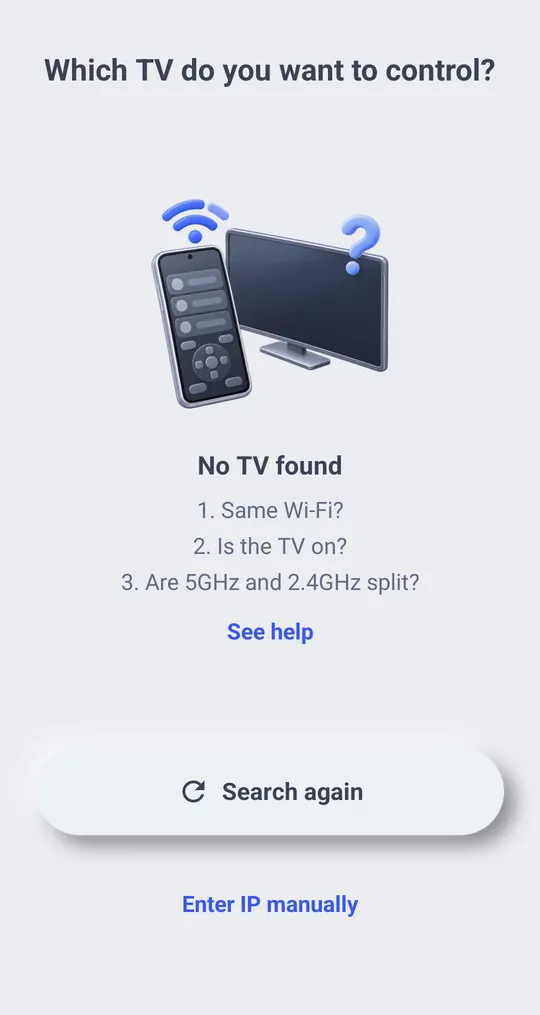
1. Put your phone on Wi‑Fi, not mobile data
The app can only find TVs on the same Wi‑Fi network. On mobile data it shows “You are not connected to Wi‑Fi”. Tap “Open Wi‑Fi settings”, join the router your TV uses, then come back. The app searches again by itself once Wi‑Fi connects.
2. Use the same Wi‑Fi as the TV
- If your router has two network names, for example one for 2.4 GHz and one for 5 GHz, put the phone on the same one as the TV.
- Guest networks often stop devices from seeing each other. Use the main network.
- On most TVs the network name and IP address are under Settings › Network › Status.
3. Turn the TV on
The search only finds TVs that are on. After you have connected once, the app can turn many TVs on over Wi‑Fi. See Turn the TV on from your phone.
4. Turn off VPN on the phone
A VPN can stop the phone from reaching devices in your home. Turn it off while you connect.
5. Check the router's device isolation
Some routers have a setting called AP isolation or client isolation. When it is on, devices on the same Wi‑Fi cannot talk to each other, so the app cannot reach the TV. Turn it off in the router settings.
6. Enter the TV's IP address
At the bottom of the TV list, tap “Enter IP manually” and type the address. You can find the IP under TV Settings › Network › Status
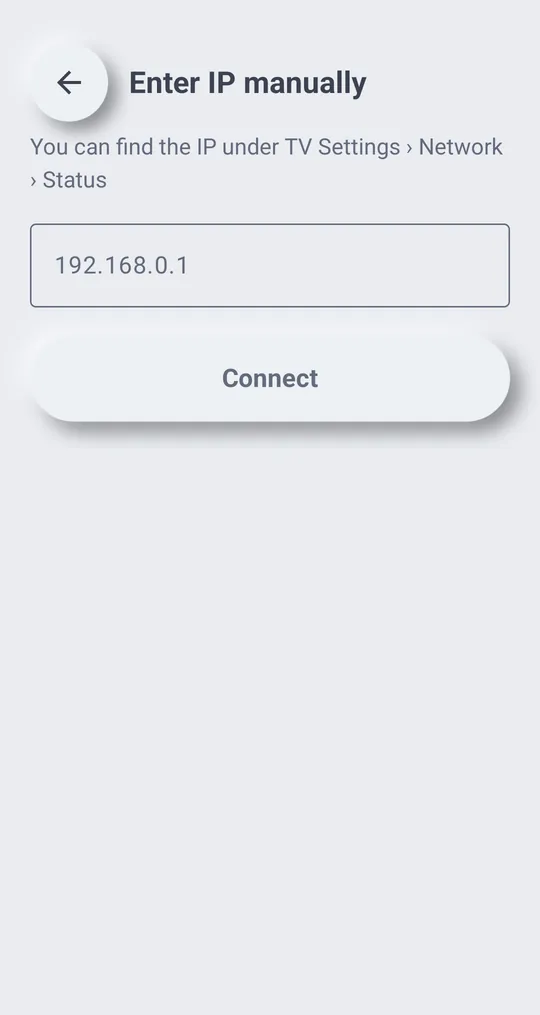
Tap “Search again” after you change anything above.
TVs the app cannot control
- TVs without Wi‑Fi. The app does not use infrared.
- Hisense VIDAA TV and Apple TV.
Manufacturer guides
TV menu names differ by model, software version and language.