 TV Remote user guide
Send photos, videos and music to the TV
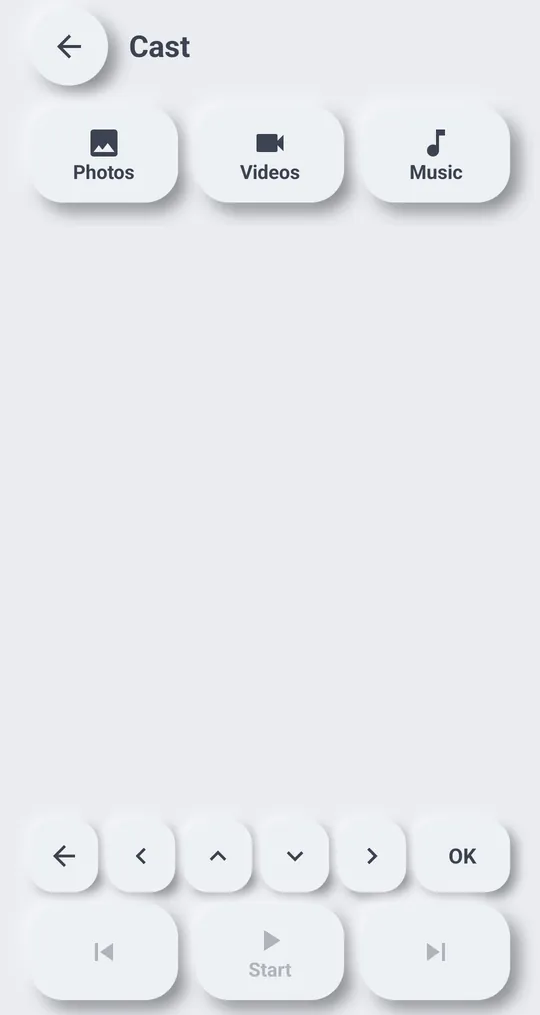
Tap “Cast” on the remote, pick photos, videos or music on your phone and open them on the TV.
Photos
- Pick photos one by one or use “Select all”.
- “Slideshow”: photos change by themselves at the interval you choose.
Videos and music
- Play and pause, move the playback position, and “Back 10 seconds” or “Forward 10 seconds”.
- “Add subtitles”: add a subtitle file in srt, vtt or smi format to a video.
Which TVs
Chromecast and TVs that can play media sent over the home network (DLNA) receive photos, videos and music. Many smart TVs also accept them directly.
If it does not work
- “Couldn\'t find a player on this TV to receive it”: the TV has no player that can receive files. Try Mirror your phone screen to the TV or “Photo slides” instead.
- If your TV asks to allow, use the buttons below
- Phone and TV must be on the same Wi‑Fi.