 TV Remote user guide
Getting started
TV Remote turns your Android phone into a remote for your smart TV over Wi‑Fi. This page takes you from installing the app to your first button press.
What you need
- An Android phone with Android 8.0 or later.
- A smart TV or TV box on the same Wi‑Fi as the phone: Samsung, LG, Sony BRAVIA, Android TV, Google TV, Chromecast with Google TV or VIZIO.
- The TV turned on. You may need the TV's own remote once to allow the phone.
First start
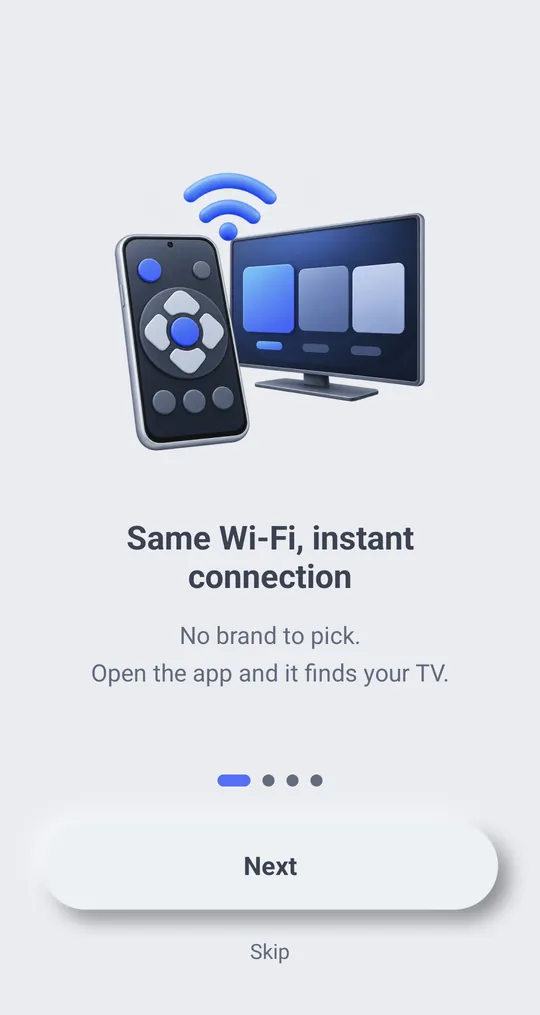
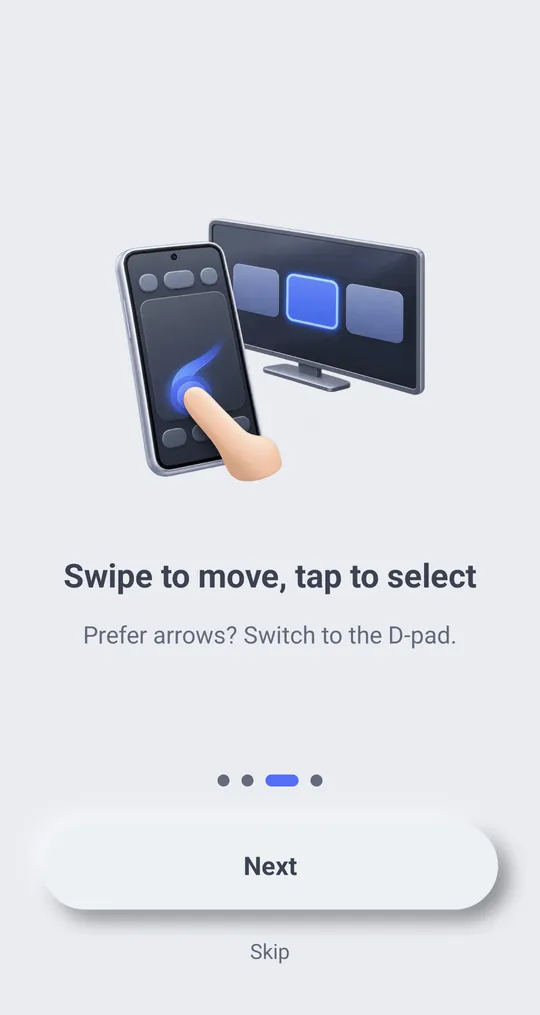
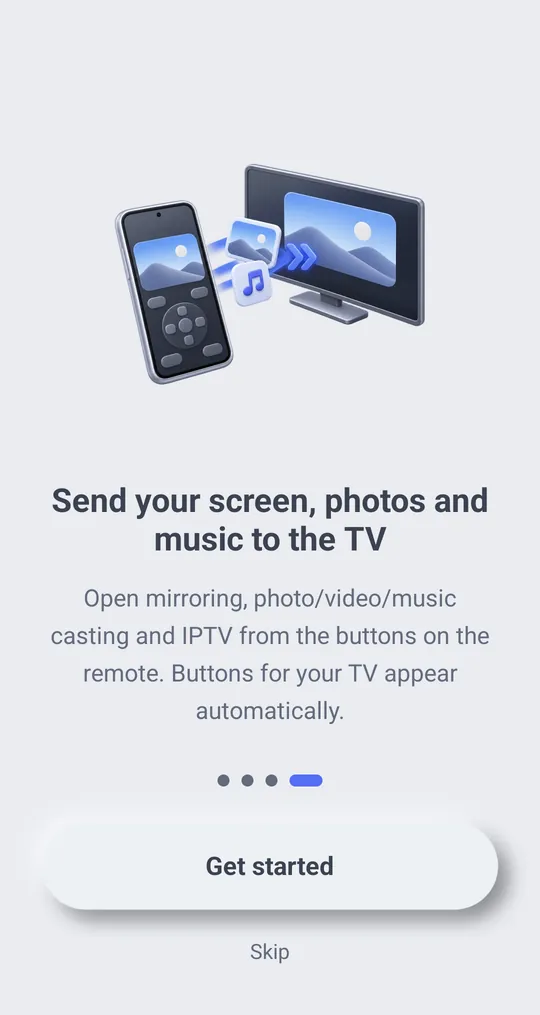
When you open the app for the first time, four short pages explain the basics. Tap “Next” to go on or “Skip” to jump straight in.
Find and connect your TV
- Make sure the phone is on the same Wi‑Fi as the TV.
- The app starts searching right away. There is no brand to pick.
- Your TV appears under “Found TVs”. Tap it.
- Depending on the TV, press “Allow” on the TV, or type the number or 6-digit code shown on the TV into the app. See the page for your TV: Use your phone as an LG TV remote, Use your phone as a Samsung TV remote, Use your phone as a Google TV or Android TV remote, Use your phone as a Sony BRAVIA or VIZIO remote.
- When the TV name shows at the top with a green dot, you are connected.
A connected TV is saved under “Saved TVs” and reconnects without a code next time, even if its IP address changes.
Several TVs
- Tap the TV name at the top of the remote to open the TV list and pick another TV.
- Saved TVs stay in the list. Use the more options button on a saved TV to “Rename” or “Remove” it.
- “Disconnect” at the bottom of the list ends the connection. The app then does not connect by itself on the next start.
If no TV shows up
Go to The app can't find my TV. You can also tap “Search again” or “Enter IP manually” at the bottom of the TV list.