 TV Remote user guide
The remote screen
The remote has three pages. Swipe left or right near the bottom of the screen to change page. The dots show which page you are on.
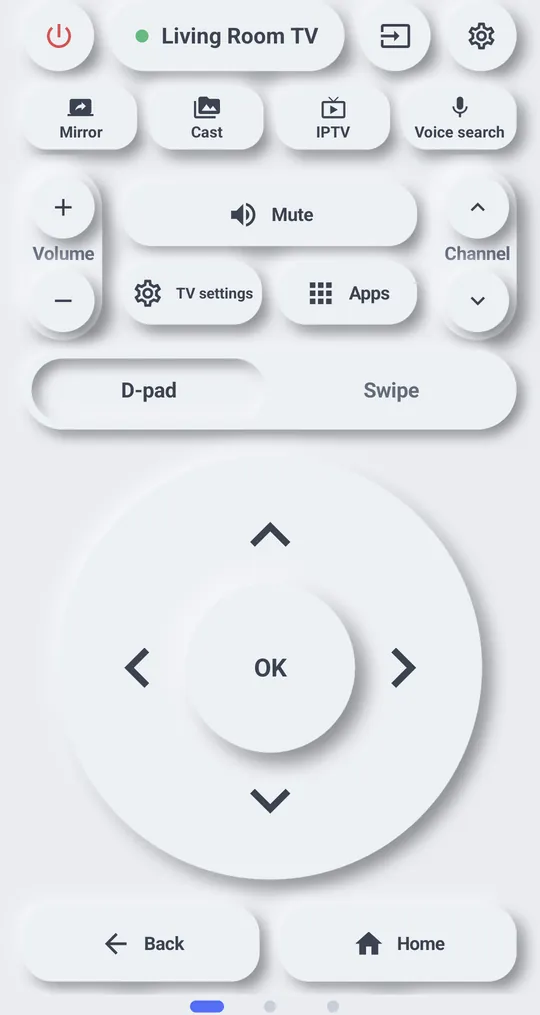
Top rows
- Power (red): turns the TV off, and on for TVs that support waking over Wi‑Fi. See Turn the TV on from your phone.
- TV name: shows the connected TV. Tap it to switch TVs or search again.
- Input: changes the TV input. TVs that report their inputs show a list to pick from.
- Settings (gear): opens the app settings. See Settings.
- “Mirror”, “Cast” and “IPTV”: see Mirror your phone screen to the TV, Send photos, videos and music to the TV and IPTV.
Volume, mute and channels
- Volume + and −, mute, and channel up and down sit on both sides.
- Hold a button to keep the volume, direction or channel moving.
- The buttons in the middle change with the TV, for example Menu, Apps or TV settings. Buttons for your TV appear automatically.
D-pad or swipe pad
Switch between the two with the tabs under the volume row.
- D-pad: arrows and OK in the middle, like a real remote.
- Swipe: Each swipe sends one arrow press. Tap for OK, long-press for Menu. Adjust the speed under Settings.
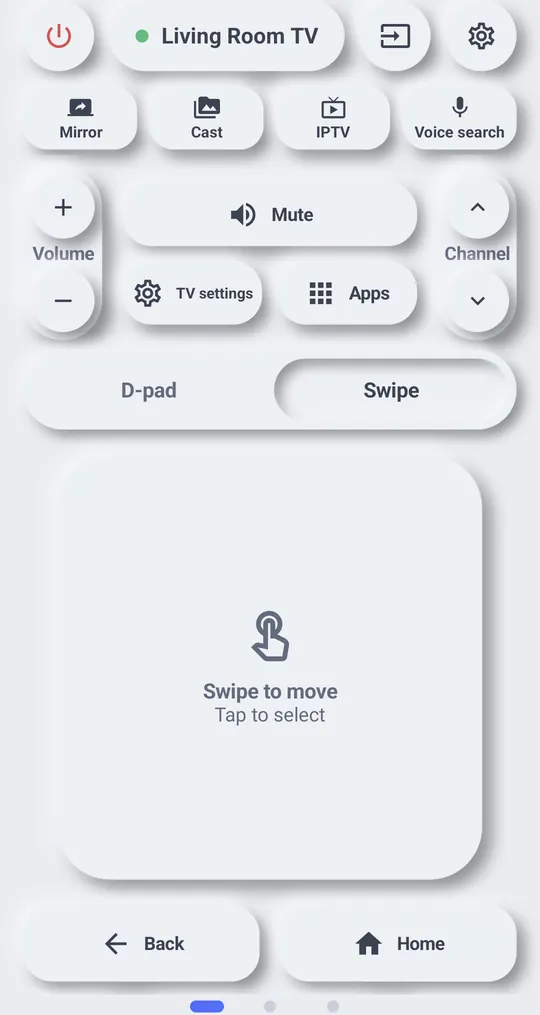
Back and Home are at the bottom of page 1.
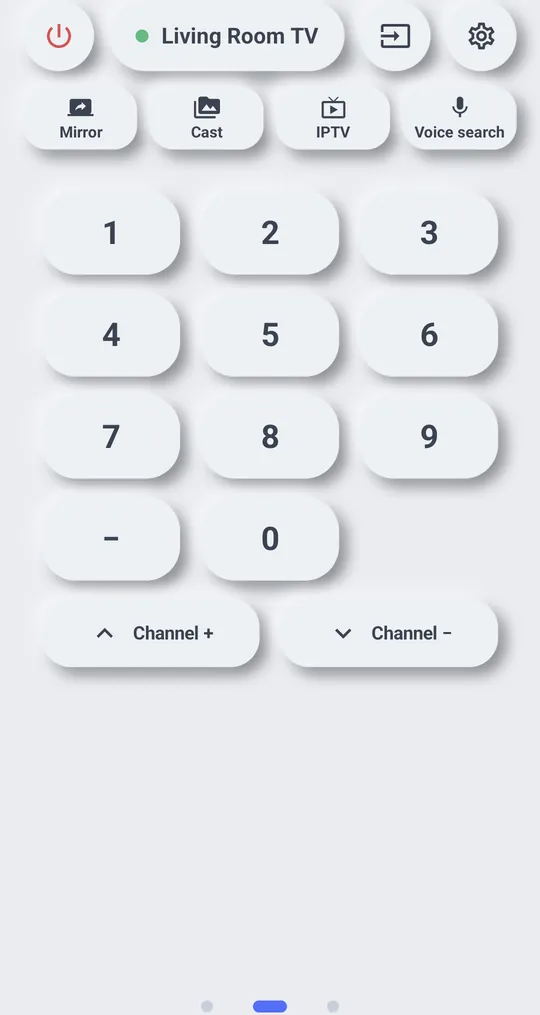
Page 2: numbers
Number buttons 0 to 9, a dash for sub-channels, and channel up and down.
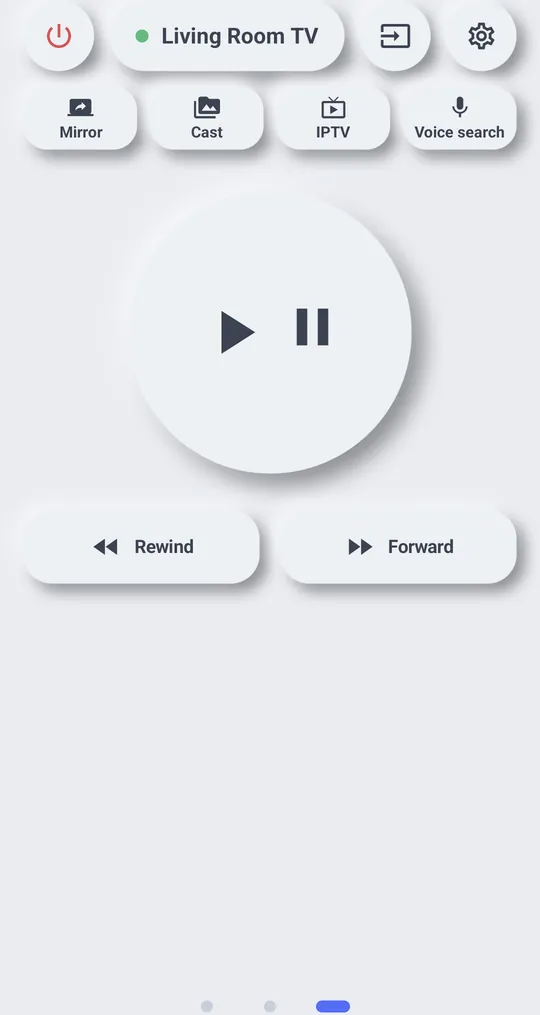
Page 3: playback
Play and pause, rewind and fast-forward for videos and music playing on the TV.
Greyed-out buttons
That TV does not support those keys. Support differs per device, so only the working keys stay solid.