 TV Remote user guide
Use your phone as an LG TV remote
TV Remote works with LG Smart TVs running webOS and with older LG NetCast TVs from 2012 and 2013. You connect once, then the phone works like the TV remote.
Connect
- Put the phone on the same Wi‑Fi as the TV and turn the TV on.
- Open TV Remote. Your LG TV appears in the list. Tap it.
- The TV asks to allow the phone. Press “Allow” with the TV remote. Some LG TVs show a number instead. Type it into the app.
- Done. The TV is saved and connects without asking next time.
You need the TV remote once for the allow step.
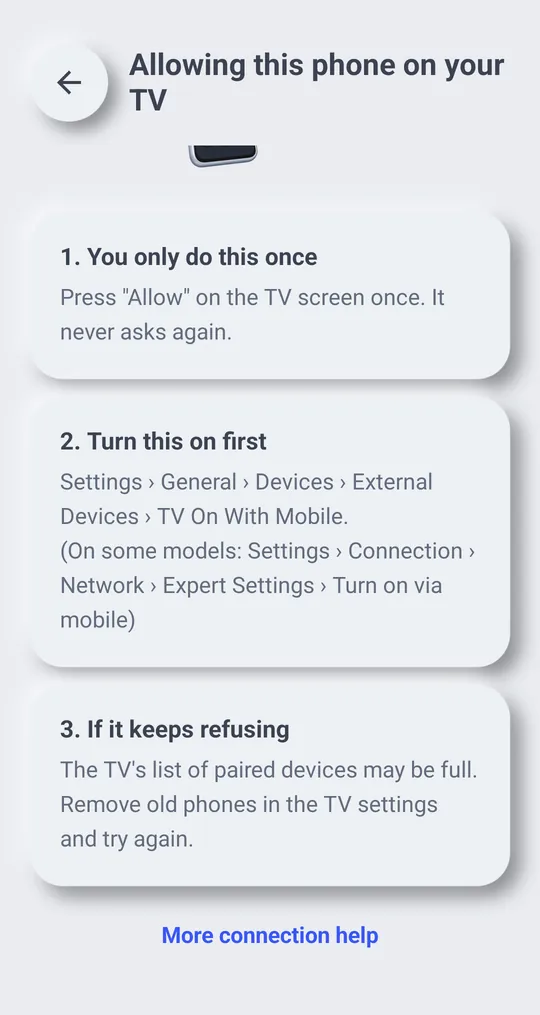
The TV never asks to allow the phone
On some LG webOS TVs, apps can only control the TV when LG Connect Apps is on. Look for it under Settings › Network › LG Connect Apps and turn it on. LG's guide also has a button there to revoke the pairing of all devices.
Turn the TV on from the phone
- Settings › General › Devices › External Devices › TV On With Mobile. (On some models: Settings › Connection › Network › Expert Settings › Turn on via mobile)
- LG lists the path by webOS version: on webOS 6.0, 22 and 23 it is Settings › General (or Devices) › External Devices › TV On With Mobile › Turn on via Wi‑Fi. On webOS 4.x the menu is called Mobile TV On.
- Connect once while the TV is on. After that, Power in the app can turn it on over Wi‑Fi.
- LG TVs that ignore the Wi‑Fi wake signal still wake on a Bluetooth signal. Allow "Nearby devices" and we send both when you press Power. Without it, Wi‑Fi wake still works.
What you can do on an LG TV
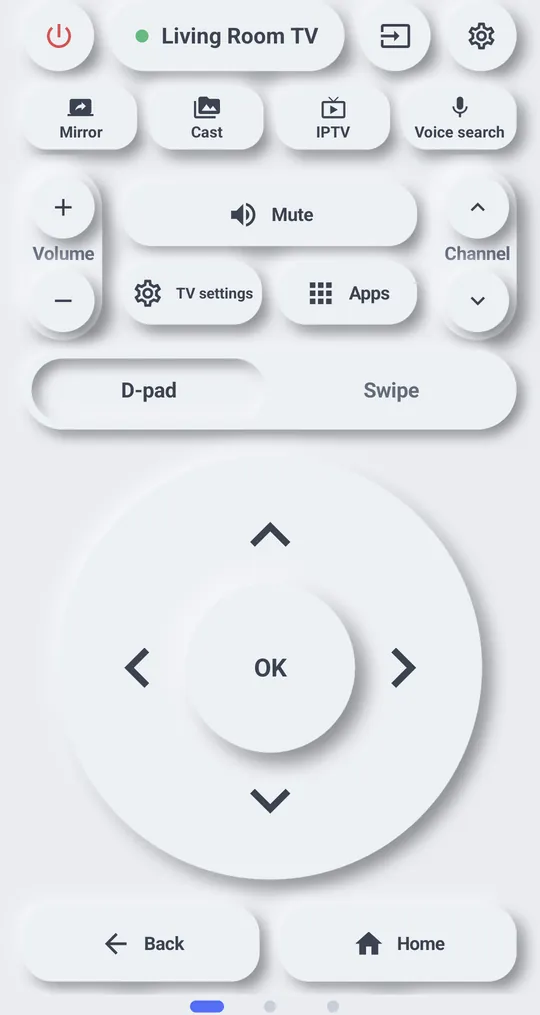
- D-pad, OK, back, home, volume, mute, channel, number and power buttons
- Move the LG pointer with the touchpad
- Input list and quick app launch on supported TVs
- Change TV volume with your phone's volume buttons
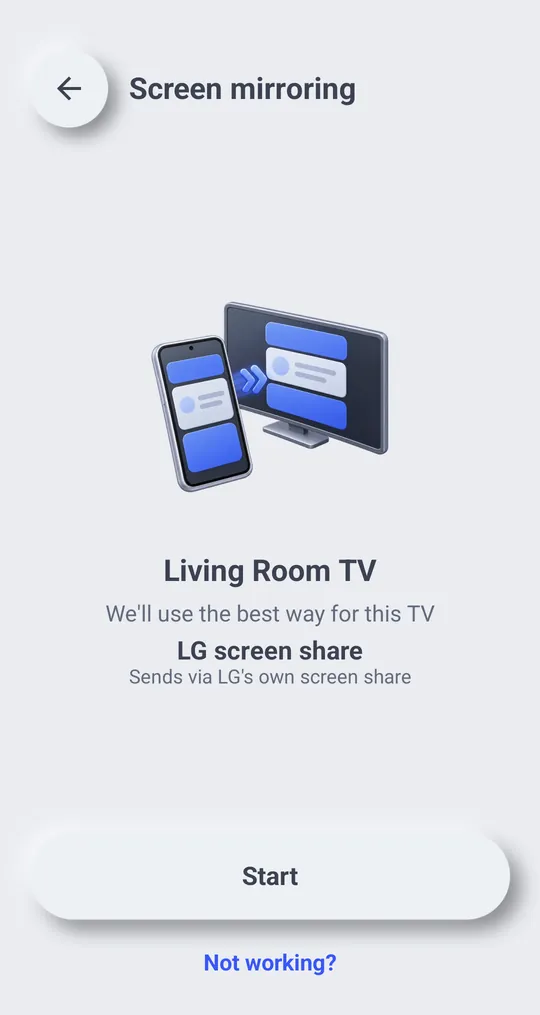
- Mirror your phone screen with LG screen share
If it does not connect
- “The TV has not allowed this phone yet”: look at the TV screen and press “Allow”.
- The TV\'s list of paired devices may be full. Remove old phones in the TV settings and try again.
- If buttons stop reaching the TV, the app shows “The TV isn\'t responding” and offers to search and connect again.
- If the TV does not show up at all, see The app can't find my TV.
Manufacturer guides
TV menu names differ by model, software version and language.